
How to use the WhiteCoat Press Tracker: a step-by-step guide
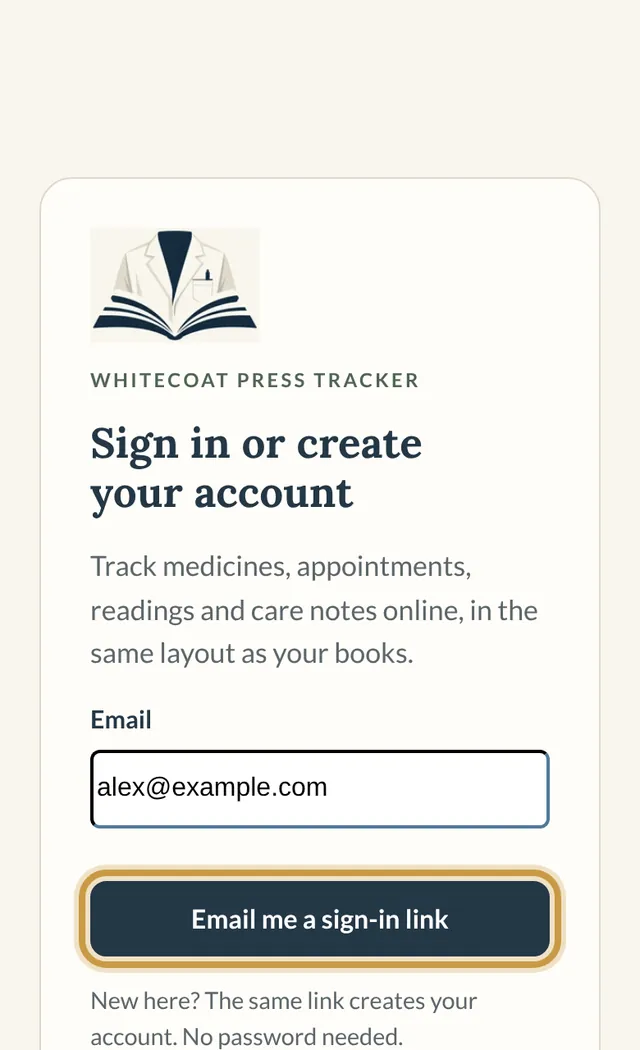
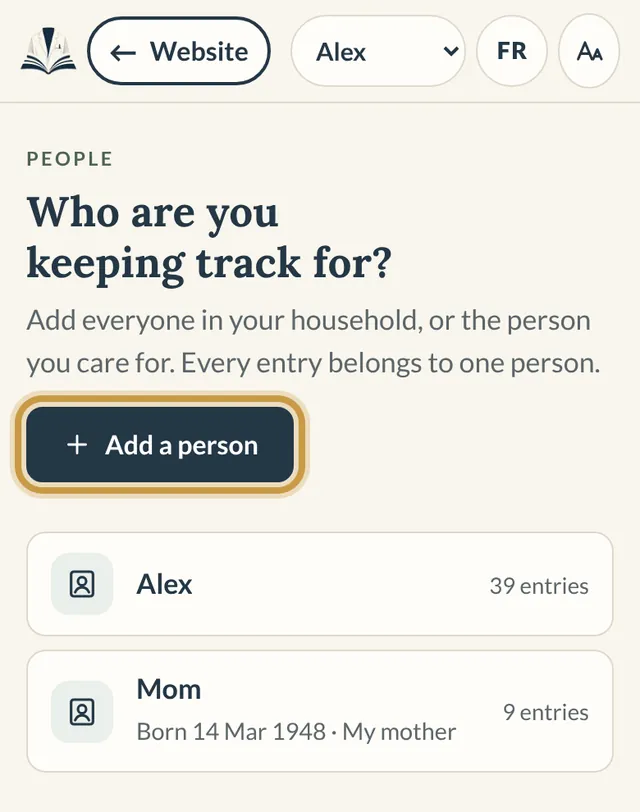
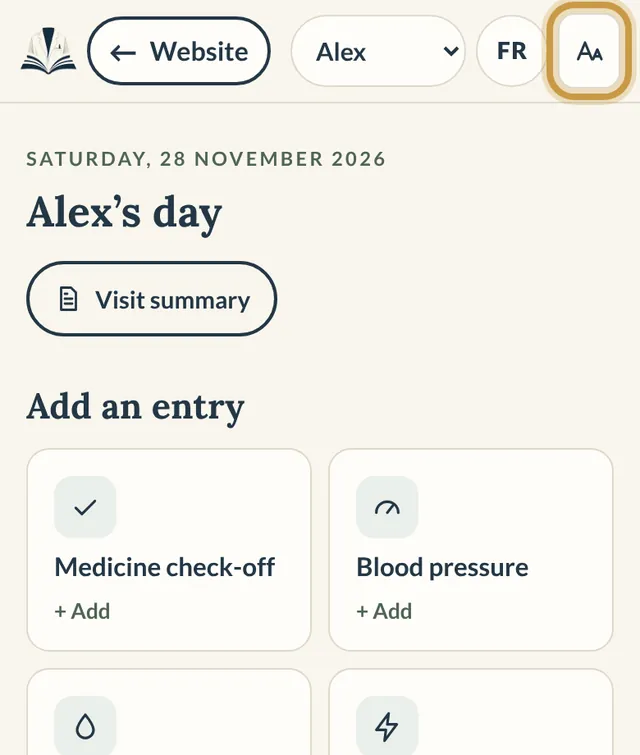
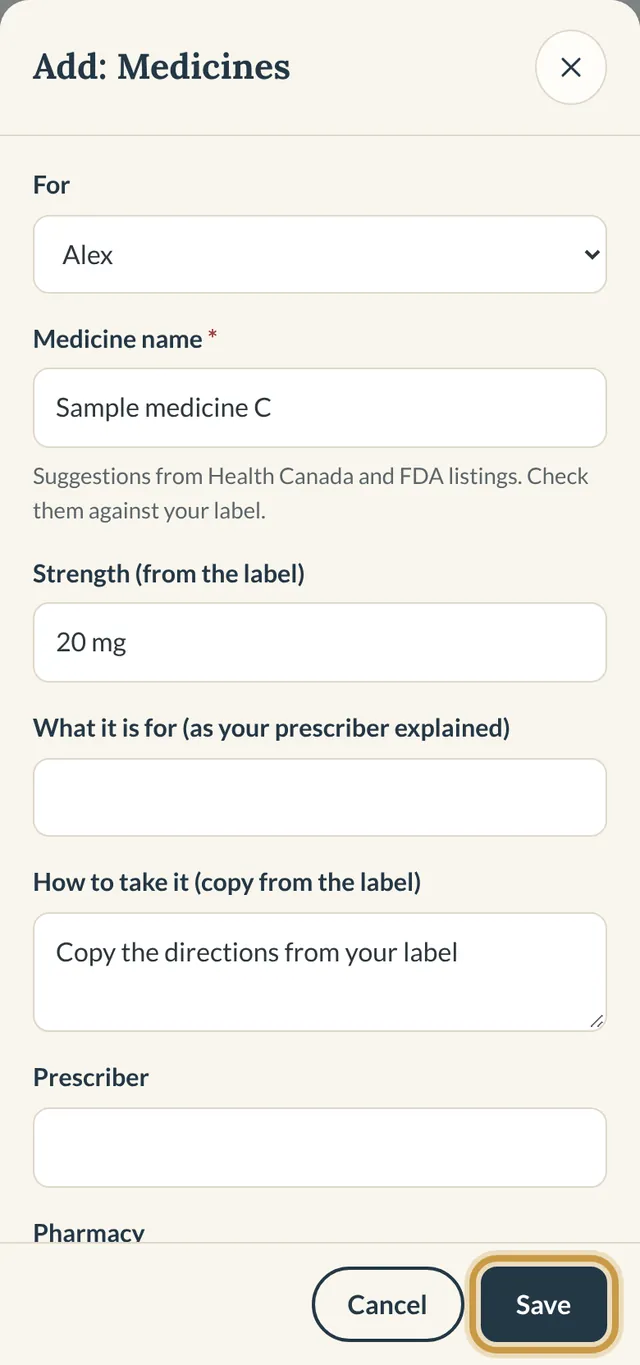
This guide walks you through the WhiteCoat Press Tracker one step at a time. It is written for patients, seniors and caregivers, and you don't need to be good with computers. Each step says exactly what to press. The pictures show the real screens, with the button to press circled in gold.
On a phone or tablet, “tap” means touch the screen with your finger. On a computer, click with the mouse instead. Take your time: almost everything can be changed later.
Before you start
- A phone, tablet or computer with a web browser, such as Safari, Chrome, Edge or Firefox.
- An internet connection the first time you open the Tracker.
- At least one WhiteCoat Press book. Each book unlocks the trackers that match its pages.
- Your pharmacy labels and the numbers from your monitor or meter, so you can copy them exactly.
The Tracker is in demo mode for now. Sign-in and payment are simulated, so you can try everything and nothing is charged.
Step 1: Open the Tracker and sign in
- On our website, tap “Open the Tracker app”. It is on the home page and under “Tracker & drug lookup” at the bottom of every page.
- Type your email address in the box.
- Tap “Email me a sign-in link”.
- Open the email on the same device and tap the link inside. There is no password to remember.
In the demo, no email is sent. Tap “Open the sign-in link” on the screen to carry on.
Step 2: Add the person you're keeping track for
The first time you sign in, the Tracker asks who you are keeping track for. Type your own name, or the name of the person you care for, and tap “Start tracking”.
- To add someone else later, tap “People” at the bottom of the screen. On a computer, it is in the menu on the left.
- Tap “Add a person”.
- Type their name. The date of birth and the note (for example “Mom”) are optional.
- Tap “Save”.
Every entry belongs to one person. A caregiver can keep a parent, a child and themselves in the same Tracker.
Step 3: Put the Tracker on your home screen (optional)
The Tracker can sit on your phone or tablet like an app, with its own icon. Do this before you add entries.
- iPhone or iPad (Safari): tap the Share button (a square with an arrow pointing up), then “Add to Home Screen”, then “Add”.
- Android (Chrome): tap the menu (three dots) at the top right, then “Add to Home screen” or “Install app”.
- Computer (Chrome or Edge): click the install icon at the right end of the address bar, then “Install”.
On iPhone and iPad, the home-screen Tracker keeps its own copy, separate from Safari, and you sign in once more. If you already added entries in Safari, download a backup there first (Step 12) and restore it in the home-screen Tracker.
Step 4: Make the screen easier to read
- Tap the “Larger text” button at the top of the screen. It shows two letter As. Tap it again to go back to normal text.
- To choose a layout, tap “Account” (on a phone) or “Settings” (on a computer), then “Mobile” or “Website”. Mobile view has large buttons, like a phone app. Website view uses the whole width of a computer screen.
- On a computer, you can also make everything bigger: hold the Ctrl key (Cmd on a Mac) and press the + key. Press Ctrl and 0 to go back.
Step 5: Add your medicine list
- On the Today screen, tap “Medicines” under “Add an entry”. If you don't see it, tap “All trackers”, then “Medicines”, then “Add”.
- Start typing the medicine name. Names from Health Canada and US FDA listings appear: tap the one that matches your label, or keep typing your own.
- Copy the strength and the directions exactly as they are printed on the pharmacy label.
- Fill in the prescriber and pharmacy if you like, then tap “Save”. You will see “Saved on this device”.
- Do the same for each medicine, vitamin and supplement. When a medicine is stopped, open it and fill in the “Stopped” date instead of deleting it.
Copy from the label, not from memory. The Tracker never suggests medicines, doses or changes: ask your pharmacist or prescriber.
Step 6: Check off medicines each day
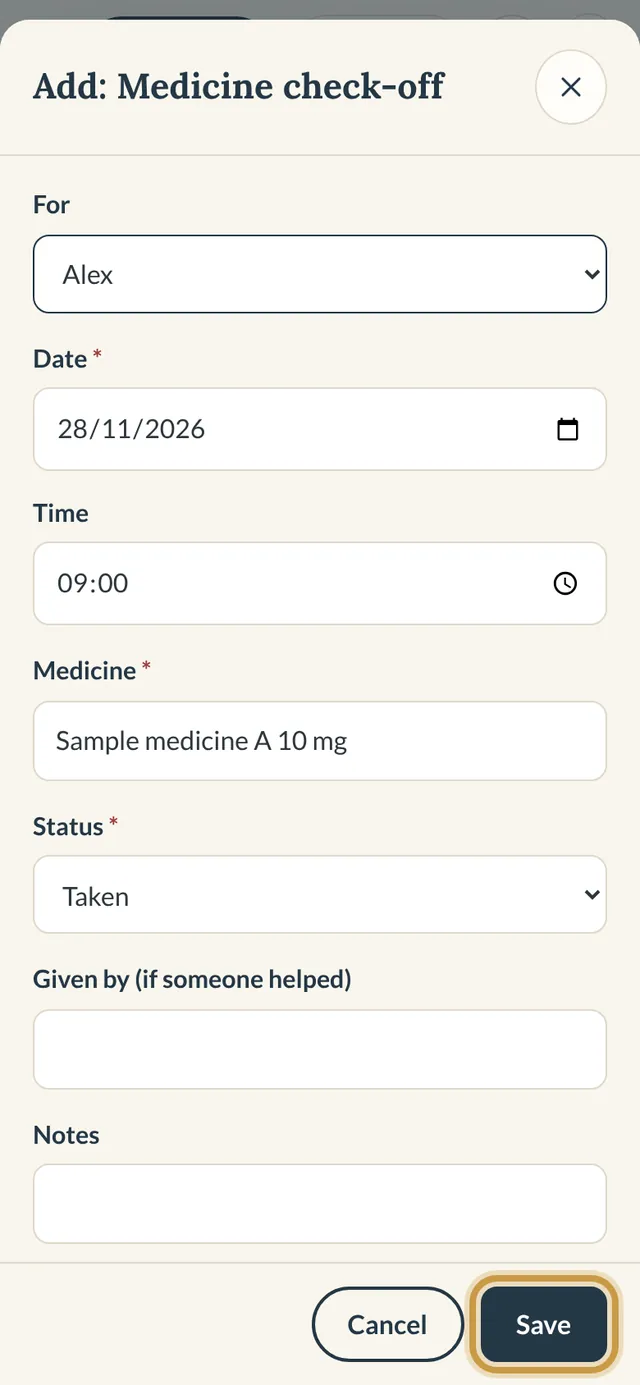
The “Medicine check-off” tracker comes with the Medication Management Planner, the Caregiver Daily Care Planner and the Senior Health & Medication Organizer.
- On the Today screen, tap “Medicine check-off”.
- Today's date is filled in for you. Change it if you are writing it down later, and add the time if you like.
- Tap the “Medicine” box and pick from the medicines you added in Step 5, or type the name.
- Under “Status”, choose “Taken”, “Missed” or “Not due today”.
- If someone helped, write their name under “Given by”. Tap “Save”.
The Tracker is a record, not an alarm: it does not send reminders. Use your phone's alarm or a pill organizer to remember doses.
Step 7: Write down a reading
Use this for blood pressure, blood sugar or weight, if your care team asked you to keep track.
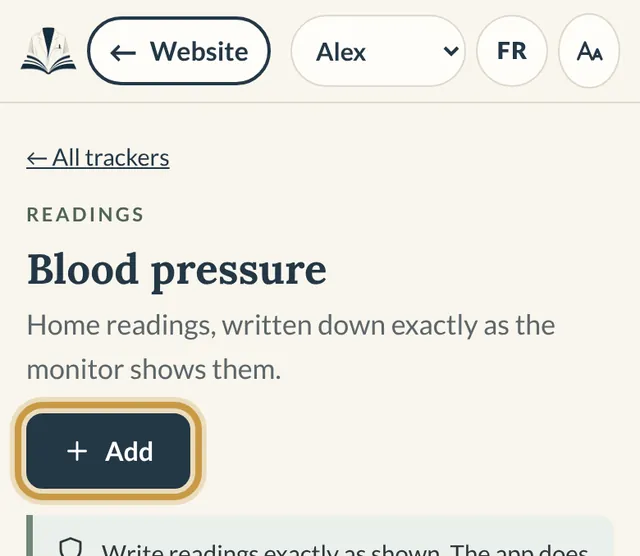
- Tap “Trackers” at the bottom of the screen, then “Blood pressure” (or “Blood sugar”, or “Weight”).
- Tap “Add”.
- Type the numbers exactly as your monitor or meter shows them. For blood pressure, that is the top number, the bottom number and the pulse.
- Add a note if anything was different that day, then tap “Save”.
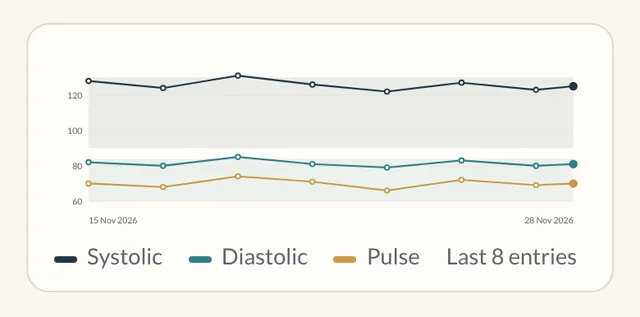
- After two readings, a chart appears above the list. If you keep track for more than one person, choose one person at the top to see their chart.
If your doctor, nurse practitioner or pharmacist gave you target numbers, tap “Set ranges” to note them. They show as a light band on the chart, for reference only. The Tracker does not judge your readings: talk to your healthcare professional about them.
Step 8: Write down how you feel, or the care you gave
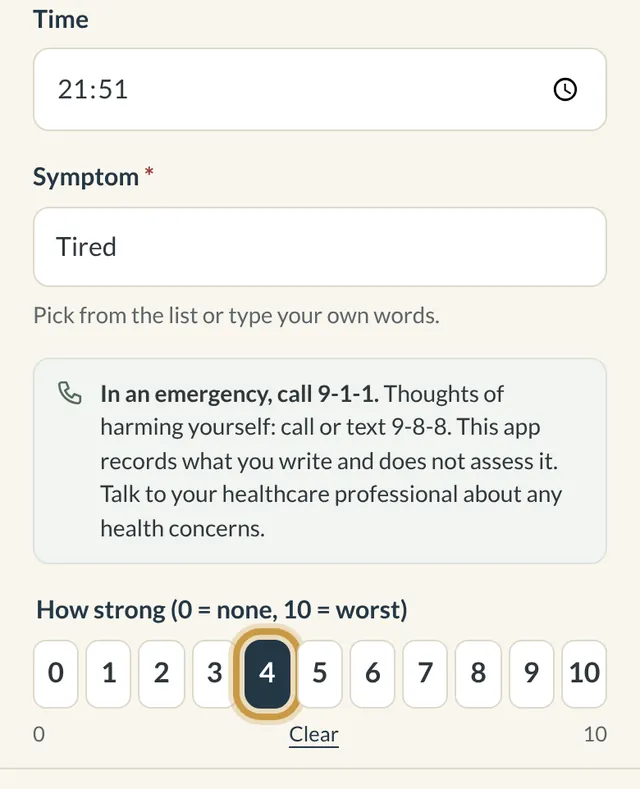
- Symptoms: what you noticed, how strong it was on your own 0 to 10 scale, and how long it lasted.
- Headache & pain episodes: when it started and ended, the peak pain and what you tried.
- Wellbeing check-in: mood, energy, stress and sleep, in under a minute.
- Daily care log (for caregivers): care given, meals, mood and notes for the next helper.
- Concerns & incidents (for caregivers): falls, confusion or anything else to tell the care team.
- Tap the tracker on the Today screen, or under “Trackers”, then tap “Add”.
- For a 0 to 10 scale, tap a number. Tap “Clear” if you change your mind.
- Write in your own words, then tap “Save”.
The Tracker only records what you write. It does not read or assess it. In an emergency, call 9-1-1. For thoughts of harming yourself, call or text 9-8-8.
Step 9: Keep track of appointments and questions
- Tap “Trackers”, then “Appointments”, then “Add”.
- Fill in the date, the time, the clinic and the reason for the visit. Add who is driving, if that helps.
- Write your questions in “Questions to ask” as you think of them. You can also keep them in “Questions for my care team”.
- After the visit, open the appointment and write down the notes and next steps you were given, in their words.
- Appointments, refills and other dates for the next three weeks appear under “Coming up” on the Today screen.
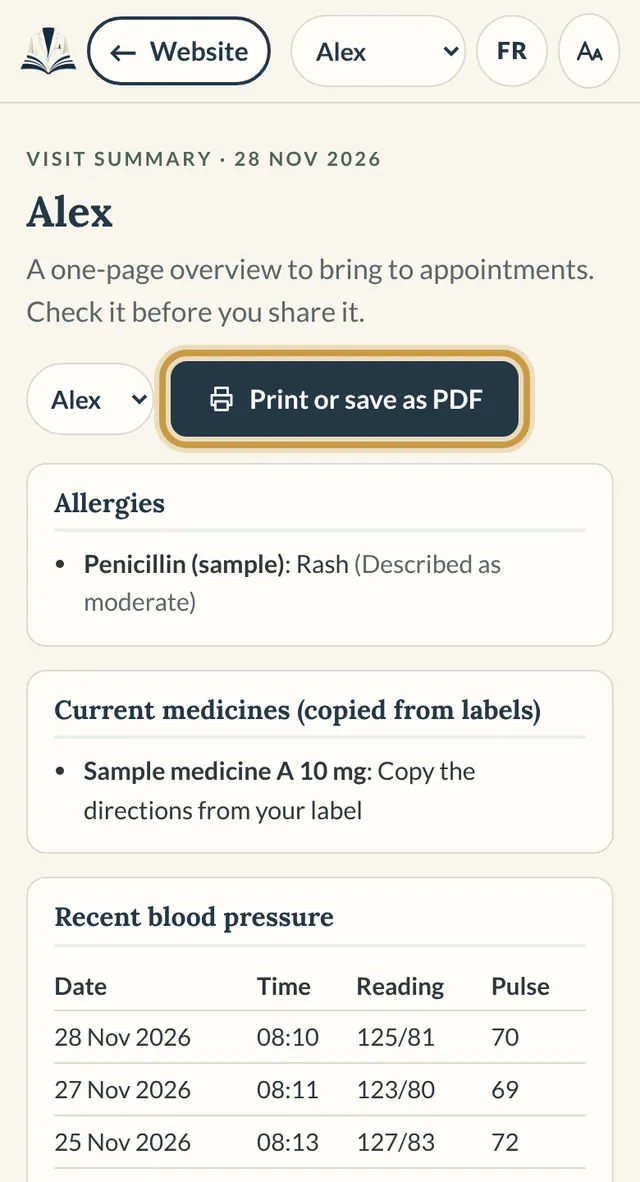
Step 10: Print a visit summary
- Tap “Summary” at the bottom of the screen. On a computer, it is in the menu on the left.
- If you keep track for more than one person, choose the person at the top of the summary.
- Read the page. It shows allergies, current medicines, recent readings, upcoming appointments, questions and contacts.
- Tap “Print or save as PDF”. Choose your printer, or choose “Save as PDF” to keep or email it.
Bring the summary to appointments, the pharmacy or the hospital. It is organized from what you entered. It is not a medical record.
Step 11: Keep track for more than one person
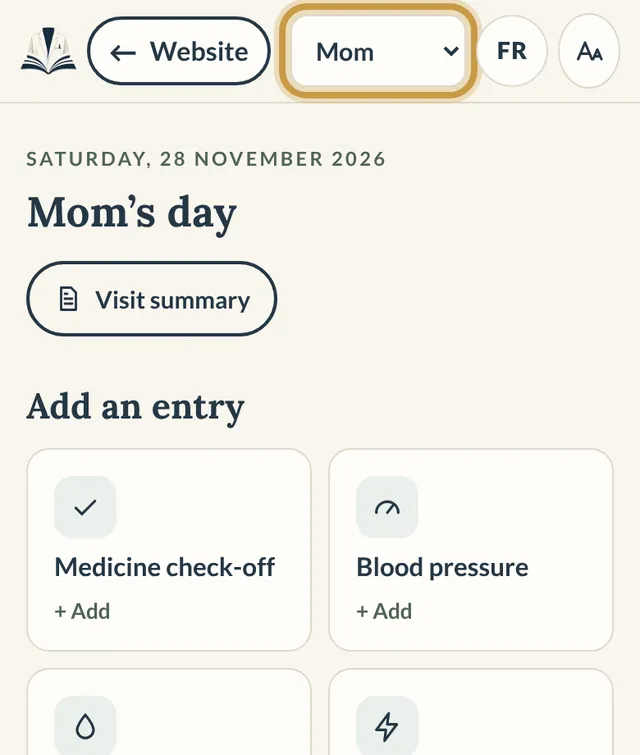
- At the top of every screen there is a box that says “Everyone”. Tap it and choose one person to see only their entries.
- Choose “Everyone” again to see all entries, with each person's name beside them.
- When you add an entry, choose who it is for in the “For” box at the top of the form.
- Charts and the visit summary show one person at a time.
Entries don't copy between devices on their own. To give another helper a copy, send them a backup file (Step 12). Restoring it replaces what is on their device.
Step 12: Keep your entries safe
Your entries are saved only in this browser, on this device. We never see them. That keeps them private, but it also means you look after the copy.
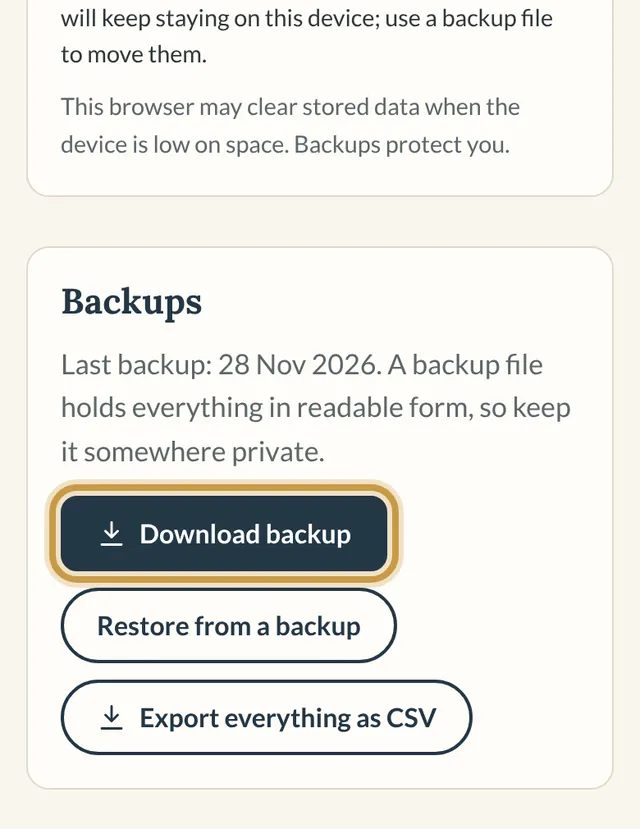
- Open Settings. On a phone, tap “Account”, then “Open settings”.
- Tap “Download backup”. Keep the file somewhere private, such as your own computer or a USB key. Do this about once a month. The Today screen reminds you after 30 days.
- To stop other people who use this device from opening the Tracker, tap “Set a passcode”. Keep the passcode somewhere safe: if it is forgotten, the entries can't be opened without a backup.
- To move to a new phone or computer, sign in to the Tracker there, open Settings and tap “Restore from a backup”. Restoring replaces everything on that device.
Clearing your browser's history and data, or using a private window, can erase your entries. Download a backup first. If you are not sure how, ask a family member to do this step with you.
Step 13: Look up a medicine
- On the Today screen, tap “Drug lookup”. On a computer, it is also in the menu on the left.
- Type at least 2 letters of a brand name, an ingredient, a DIN (Canada) or an NDC (US).
- Choose “Both”, “Canada” or “US”.
- Next to the strength that matches your label, tap “My medicines” to add it to your medicine list. Check that it matches your pharmacy label before you save.
The lookup shows listing information from Health Canada and the US FDA, for reference only. Ask your pharmacist about any medicine.
If something isn't working
- A tracker is missing, or shows a lock.
- Each book unlocks its own trackers. Tap “Trackers” and look under “More trackers you can unlock” to see which book includes it.
- My entries are gone.
- Check that you are using the same device and the same browser as before, and not a private window. If the browser's data was cleared, open Settings and restore your latest backup.
- I forgot my passcode.
- The entries can't be opened without it. On the passcode screen, you can erase the Tracker on this device and then restore a backup.
- There is no chart.
- A chart appears after two entries with numbers. If you keep track for several people, choose one person at the top.
- I made a mistake in an entry.
- Tap the entry to open it, fix it, and tap “Save changes”. To remove it, open it and tap “Delete”.
- I want to see what it looks like with entries first.
- In Settings, tap “Add sample entries”. They are made-up examples. Tap “Remove sample entries” when you start for real.
- Who can I ask about my readings or medicines?
- Your doctor, nurse practitioner or pharmacist. For questions about the Tracker itself, write to us from the Contact page.
What the Tracker does and doesn't do
- It records and charts what you type, and keeps it on your device.
- It does not say whether a reading is good or bad, diagnose anything or suggest doses.
- It does not send reminders or alerts.
- It does not share your entries with anyone, including us.
- In an emergency, call 9-1-1 (Canada and the US).
Every tracker, by section
The trackers you see depend on the books you bought. This is the full list.
Medicines
- Medicines: Your medicine list, copied exactly from the pharmacy label or your prescriber.
- Medicine check-off: Tick off medicines as they are taken, as directed on the label.
- Refills: When each refill is due, and whether it has been ordered or picked up.
- Medicine changes: A record of changes your prescriber made, in their words.
- Side effects & reactions: Anything you noticed after a medicine, to tell your pharmacist or prescriber.
- Vitamins & supplements: Vitamins, supplements and over-the-counter products, so your pharmacist sees the full picture.
Readings
- Blood pressure: Home readings, written down exactly as the monitor shows them.
- Blood sugar: Readings from your meter or sensor, in the unit it uses.
- Weight: Weight, if your care team has asked you to keep track.
- Test results: Lab and test results, copied from your report or patient portal.
Daily life
- Meals & activity: Meals, snacks and activity notes to go with your readings.
- Supplies: Strips, sensors, needles and other supplies, and when to reorder.
How I feel
- Symptoms: Symptoms you notice, rated on your own 0 to 10 scale.
- Flares & hard days: Flares or hard days: when they started, what was going on and what helped.
- Wellbeing check-in: A quick daily check-in on mood, energy, stress and sleep.
- Pacing & energy: Plan the day around your energy and note how it went.
- Cycle: Period start and end dates, flow and symptoms. This is a record, not a prediction, and not contraception.
- Life-stage changes: Changes you notice over months, such as during perimenopause, to discuss with your care team.
- Headache & pain episodes: Each headache, migraine or pain episode: when, how bad, what you tried and what was going on before.
Appointments
- Appointments: Upcoming and past visits, with your questions before and notes after.
- Referrals: Referrals to specialists and where each one stands.
- Calls & messages: Calls and portal messages with clinics, so you know who said what and when.
- Questions for my care team: Write questions down as you think of them, then note the answer.
Caregiving
- Daily care log: What happened each day for the person you care for.
- Concerns & incidents: Falls, confusion or anything else worth telling the care team.
- Tasks & errands: Pick-ups, forms, calls and errands, and who is doing each one.
- Care circle & helpers: Family, friends and paid helpers, what each one covers and when.
- Costs & receipts: Care costs and whether you kept the receipt.
My health
- Allergies: Allergies and intolerances, as told by your care team.
- Conditions: Conditions in the words your care team uses.
- Surgeries & hospital stays: Past operations and hospital stays.
- Family health history: Conditions in your family that your care team may ask about.
- Immunizations: Vaccines received, copied from your records.
- Screenings & check-ups: Check-ups and screenings, and when your care team said the next one is due.
- What my care team told me: Instructions and plans from your care team, written in their words. The app never adds advice of its own.
Contacts & papers
- Care team & contacts: Doctors, nurse practitioners, pharmacists, clinics and emergency contacts.
- Insurance & coverage: Health plans and coverage. Store the last 4 digits only, never the full number.
- Where papers are kept: Where important papers are kept and who has a copy. A record only, not a legal form.
- Forms, benefits & records: Forms, benefit applications and records requests, and where each one stands.
Notes
- Monthly review: Once a month: what went well, what changed and what to ask about.
- Notes: Anything that does not fit elsewhere.
This guide explains how to use the Tracker app. It is not medical advice. Talk with your doctor, nurse practitioner or pharmacist about your health, your readings and your medicines.